 MirrorDesk for Mac
Your iPhone. Your Mac.
Seamlessly together.
Mirror your iPhone or iPad to your Mac in crystal‑clear, smooth 60 FPS — over Wi‑Fi or a USB cable. Show two iPhones at once, record with sound, and pay just once.


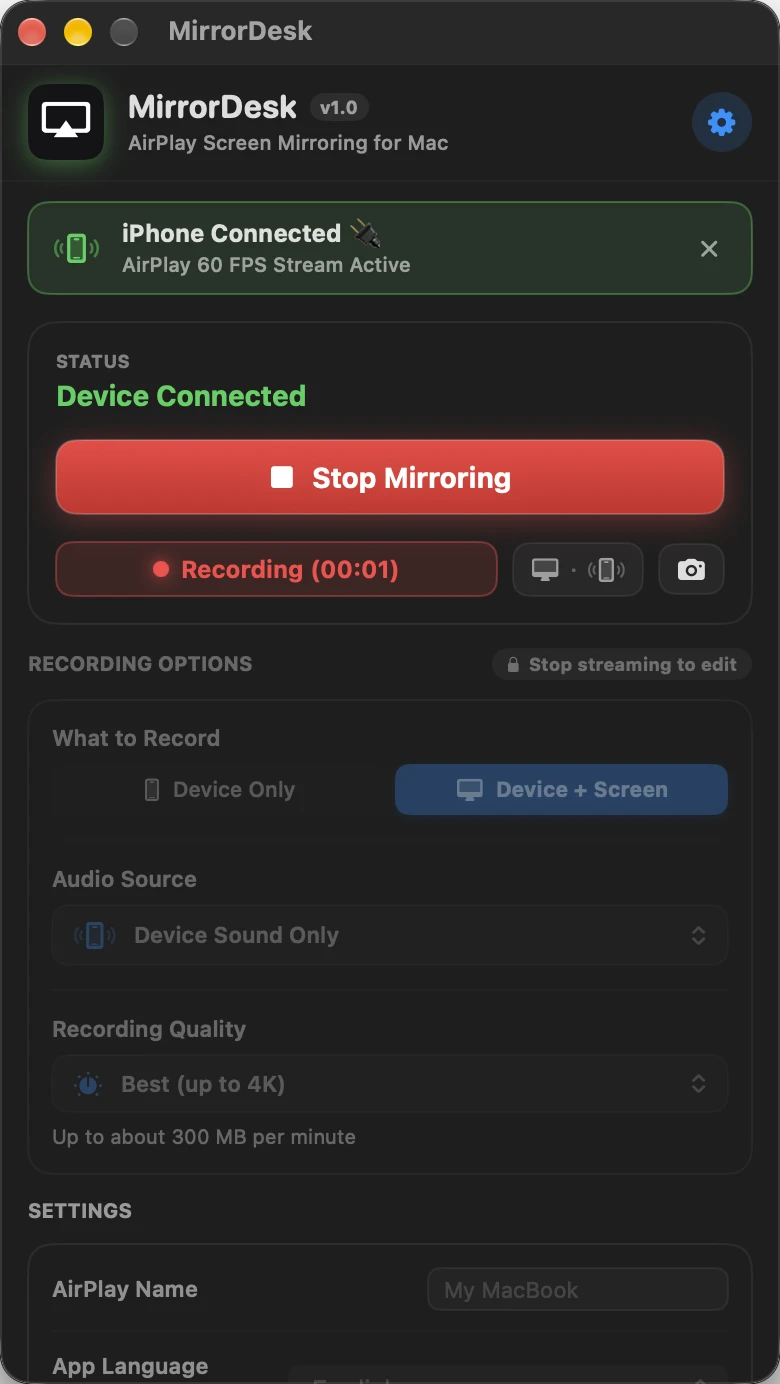
MirrorDesk puts your iPhone or iPad right on your Mac. Watch it bigger, show it to a room, record it with sound — in one native app that you buy once and keep.
Take a closer look
One window.
Everything in reach.
Ready when you are.
Press Start Mirroring, then choose your Mac from Screen Mirroring in your iPhone's Control Center. Recording options are set before you begin.
Actual app screenshot
Effortless mirroring
Big screen.
No setup.
Start MirrorDesk, open Control Center on your iPhone or iPad, and pick your Mac. That's it — your screen appears in its own window, with sound.
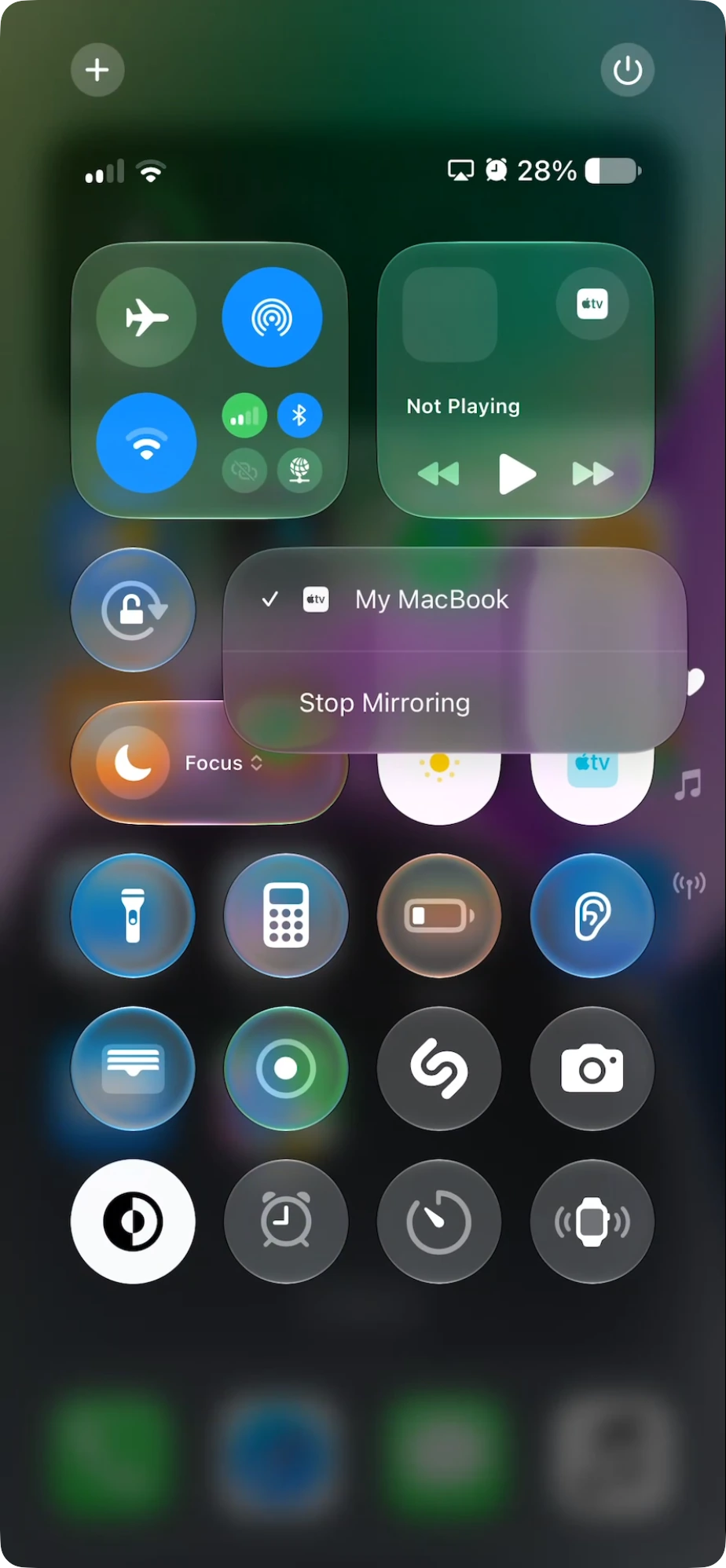
- 1
Start Mirroring
One click in MirrorDesk makes your Mac visible to your devices.
- 2
Open Control Center
Tap Screen Mirroring on your iPhone or iPad.
- 3
Choose your Mac
Your screen and its audio arrive in a clean window.
Multi-Device Mode
Two iPhones.
One Mac.
Mirror two iPhones side by side. Compare builds, follow two players, or demo both ends of a conversation — all on one screen.
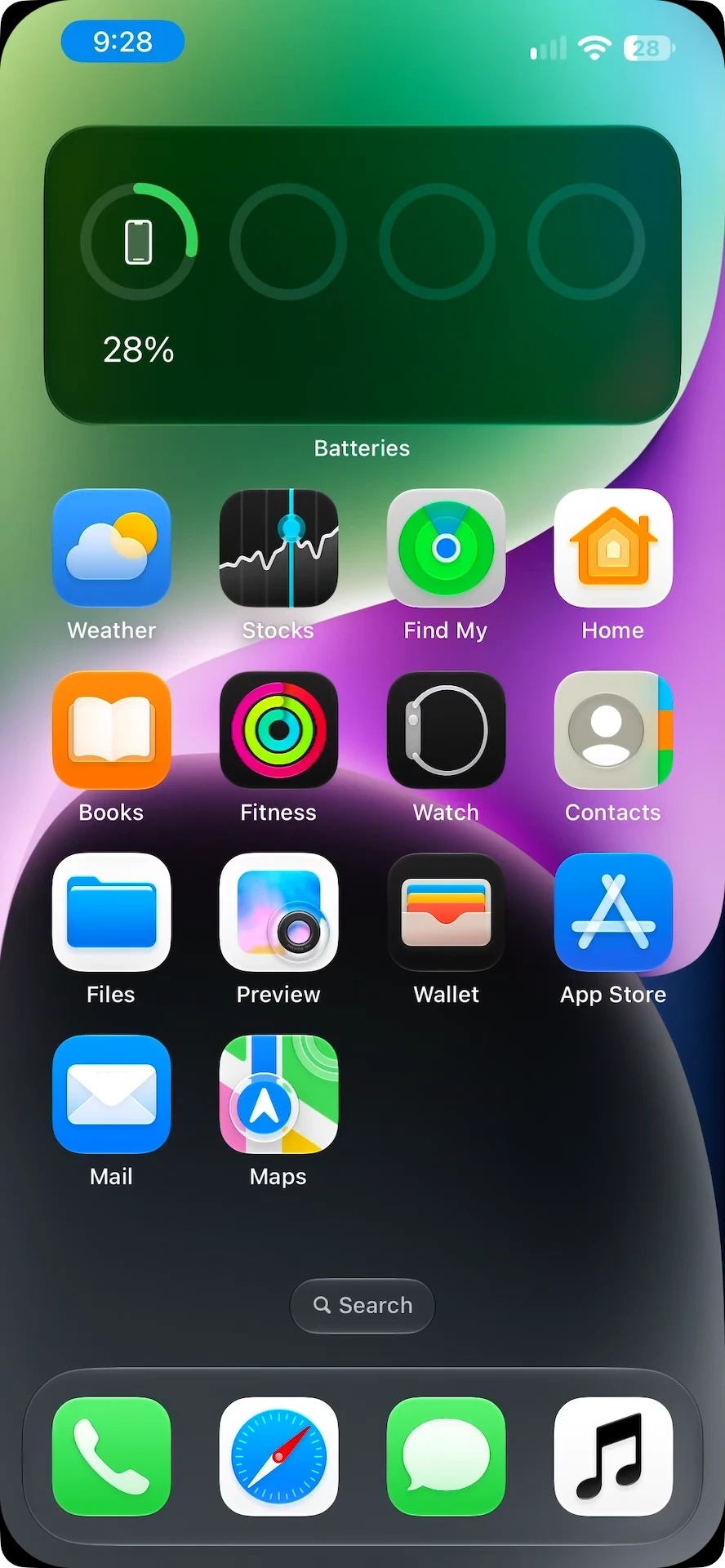
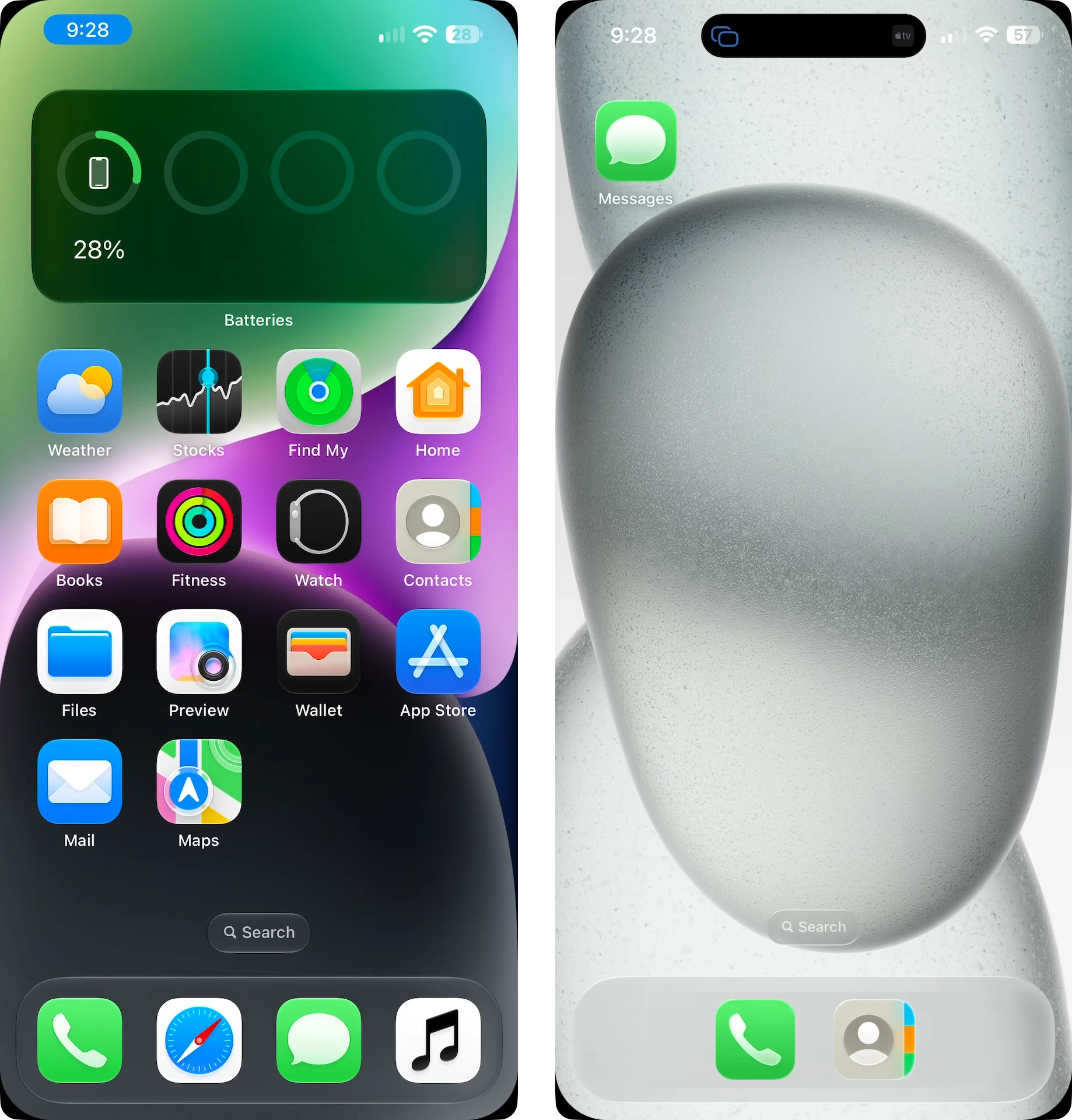
Turn on Multi-Device Mode in Settings. Each iPhone connects to its own receiver name.
Smooth by default
Fluid at
60 FPS.
Scrolling, swiping and gameplay look the way they do in your hand. MirrorDesk mirrors at a smooth 60 FPS by default. Choose 30 FPS to go easy on your devices, or 120 FPS for ProMotion iPhones.
Actual frame rate depends on your iPhone, your Mac’s display, the app being mirrored and your network.
The same choices as MirrorDesk's Frame Rate setting. To see 120 FPS, your screen needs a 120 Hz display.
Picture quality
Crystal clear.
Pixel for pixel.
MirrorDesk receives your iPhone or iPad in up to 4K resolution, using the efficient H.265 format, and decodes it with your Mac’s own video hardware. Small text stays readable and photos stay sharp, even when you make the window big.
- Up to 4K resolution
- H.265 hardware decoding on Apple silicon
- Just as sharp in portrait and landscape
Up to 4K means a stream of up to 3,840 pixels on its long side. Actual resolution depends on the device being mirrored and your Wi‑Fi network.

Wired or wireless
No Wi‑Fi?
Plug in.
Mirror over your local network, or connect your iPhone with a USB cable for a direct, steady link — on a train, in a hotel, or anywhere the Wi‑Fi can't be trusted.
Wireless
Both devices on the same Wi‑Fi network. No internet connection needed.
Wired USB
One cable between iPhone and Mac. No router at all, and the lowest latency MirrorDesk offers.
Recording studio
Don't just mirror.
Record it.
Record just the device, straight from its own picture in up to 4K, or the device together with your whole Mac screen. Pick exactly which sound goes in and how big the file should be, then save an MP4 to a folder you choose.
Snapshots in a keystroke
Save a full-resolution PNG of your mirrored screen without touching the mouse.
Live audio, your way
Mute or adjust each device's sound on your Mac without changing the volume on your iPhone — or your recordings.
Saved where you want
Recordings and snapshots go straight to the folders you pick, saved in seconds with a progress bar for long ones. Never uploaded anywhere.
Default shortcuts. Change any of them in Settings.
Clean, frameless windows
Just your screen.
Nothing else.
No fake bezels, no clutter. Your device appears in a frameless Mac window you can resize, rotate, and keep floating above everything else while you work. Each iPhone and iPad opens right where you left it last time.
Browser demo of real MirrorDesk window controls.
Made for how you work
Play. Watch.
Create. Build.
Your mobile games, on a bigger screen.
Play with your iPhone in hand while the action fills your Mac display. Landscape games rotate automatically, and a USB cable keeps the connection steady.
- 60 FPS, with a 120 FPS option
- Wired USB Mode for a direct link
- Game audio through your Mac
- Record highlights with one shortcut
Stop squinting at your phone.
Watch videos, browse photos, and share what's on your iPhone on a screen everyone can see — with sound from your Mac's speakers or headphones.
- Sound through your Mac
- Window scale from 0.5× to 2×
- Keep it floating on top while you work
- Quick mute without touching your phone
Tutorials and demos, in one take.
Record your iPhone — alone or with your whole Mac screen — and talk over it with your Mac's microphone. Grab snapshots for thumbnails as you go.
- Record in up to 4K, or in smaller files
- Microphone voiceover
- PNG snapshots with ⌘S
- Files stay on your Mac
Your app, next to your code.
Pin a live iPhone screen above your editor, or mirror two iPhones to compare builds side by side. Capture bug reports in a keystroke.
- Two iPhones at once
- Always on top
- Customizable shortcuts
- Rotate the window 90°
What's on your screen
stays on your Mac.
MirrorDesk works entirely on your local network or USB cable. No account, no cloud, no tracking.
Local only
Video and audio travel directly between your devices over Wi‑Fi or USB.
No servers
MirrorDesk doesn't send your screen, audio or files to any server.
No tracking
No analytics, no advertising SDKs, no personal data collected.
Your files
Recordings and snapshots are saved only to the folders you choose.
Pricing
Buy it once.
It's yours.
No subscription. No in-app purchases. No account. One purchase on the Mac App Store unlocks everything.

MirrorDesk
One-time purchase · Mac App Store
- iPhone and iPad mirroring
- Wireless and wired USB modes
- Two iPhones at once
- Up to 4K, at 30, 60 or 120 FPS
- Recording in up to 4K, with audio and mic
- PNG snapshots and custom shortcuts
- Frameless, always-on-top windows
- 20 languages

Price shown on the Mac App Store for your region. Requires a Mac with Apple silicon and macOS 26.5 or later.
20 languages
Speaks your language.
MirrorDesk follows your Mac's language, or lets you pick one in Settings — including full right-to-left layouts for Arabic and Hebrew.
Questions & answers
No. MirrorDesk is a one-time purchase on the Mac App Store. There are no subscriptions, no recurring fees and no in-app purchases.
Connect your iPhone to your Mac with a USB cable, make sure the Mac is trusted on your iPhone, and turn on Wired USB Mode in Settings. MirrorDesk then streams over the cable instead of Wi‑Fi, so there's no router involved.
Yes. Turn on Multi-Device Mode in Settings to mirror two iPhones side by side on your Mac.
Yes. Audio from your device plays through your Mac's speakers or headphones. Live audio controls let you mute or adjust it in MirrorDesk without changing your iPhone's volume or your recordings.
MirrorDesk receives your iPhone or iPad in up to 4K (up to 3,840 pixels on the long side) using the efficient H.265 format, and decodes it with your Mac's video hardware. The exact resolution depends on your device and Wi‑Fi. Some apps limit what they show while the screen is mirrored. YouTube, for example, won't play 4K video during screen mirroring, on any AirPlay receiver.
Record just the mirrored device, or the device together with your Mac screen. For sound, choose device audio only, device and Mac audio, your microphone as a voiceover, or no audio. Choose a Recording Quality to match: Best (up to 4K, up to about 300 MB per minute), High (1080p, about 60 MB), Medium (720p, about 30 MB) or Small (480p, about 11 MB). Recordings are saved as MP4 and snapshots as PNG, in folders you choose.
Only what a feature needs, when you use it. Local Network lets your iPhone or iPad find your Mac. Screen Recording is asked for only when you record your Mac's screen or Mac audio; mirroring, snapshots and Device Only recordings don't need it. The microphone is used only if you choose a voiceover.
MirrorDesk follows your device's orientation. Games, video apps and browsers that support landscape expand to landscape on your Mac. Some apps, such as Apple's Photos app while browsing, keep a portrait canvas by iOS design. You can also rotate the window yourself.
No. Wirelessly, your iPhone and Mac only need to be on the same Wi‑Fi network — internet access isn't required. With Wired USB Mode you don't need Wi‑Fi at all.
MirrorDesk requires a Mac with Apple silicon (M1 or later) running macOS 26.5 or later. Intel-based Macs are not supported.
Bring your iPhone
to your Mac.
One purchase. Every feature. No subscription.